Saturday, August 14, 2010

Cool Orkut Hacks.


Here's the Orkut Tricks and hacks..

ALT+0173 Tricks


1. Ever seen someone without First name and/or Last Name! If yes, you might have tried to do the same but while editing your profile came 2 know that first name n last name can not be left blank! So how did others did that?

While editing name just put ALT+0173 i.e. press ALT & while it is pressed type 0173 in any field u want to left blank! You wont see any output! (In Opera u may see ‘-’ character but surely nothing will be displayed in Firefox n IE)

2. You can also use this special character if you want to escape orkut’s default formatting which is applied to your text while posting on communities and writing scrap!

e.g. [r ed]Hi[/ red] wont look Hi

if u use [r(ALT+0173)ed]Hi[/r(ALT+0173)ed]!

Just insert ALT+0173 anywhere!
U can also insert in Url’s to escape image verification while posting links but they wont be clickable

3. You can just write ALT+0173 while posting on communities n scrapbook to post blank scrap n posts!


Homepage Field


The best link to setup as your homepage is https://www.orkut.com/GLogin.aspx?cmd=logout
When someone click on this the person will be logged out from his/her orkut session

This made many people fool (including me) as we often don’t read actual content of homepage field while checking someone’s profile!


Do u think logging into Orkut is slow n login box disappears???

Bookmark the following link and use it to login into orkut!

https://www.google.com/…………www.orkut.com%2FGLogin.aspx

The above link directly opens orkut login box! So it is faster than normal orkut login!

make your computer speak

yes we can make our computer to speak whatever we type for this go to start button and click run icon, in that type "control speech", thats it now your computer can speak

Monday, August 2, 2010

Have you wondered if ur Anti-virus Software is really working??? Here is a safe way to test it, and u dont need a real virus simple to test it. However some of you might know this already but still im posting for the sake of those who dont know.Open NOTEPAD, copy the text below and paste it in NOTEPAD. Save as
EICAR.COMX50!P%@AP[4\PZX54(P^)7CC)7}$EICAR-STANDARD-ANTIVIRUS-TEST-FILE!$H+H*
Your Antivirus software may recognize the file as virus and Quarantine/Delete it as soon as u finish saving it. The file EICAR.COM is completely safe, its not a virus. It is a standard test file file devoloped by the EUROPEAN INSTITUTE FOR COMPUTER ANTI-VIRUS RESEARCH (EICAR). All Anti-virus software are programmed to detect this file as possible virus. Therefore u can test ur Anti-virus with this file without about getting ur computer infected.

IMPROVE XP SHUTDOWN SPEED

This tweak reduces the time XP waits before automatically closing any running programs when you give it the command to shutdown.
Go to Start then select Run
Type 'Regedit' and click ok
Find 'HKEY_CURRENT_USER\Control Panel\Desktop\'
Select 'WaitToKillAppTimeout'
Right click and select 'Modify'
Change the value to '1000'
Click 'OK'
Now select 'HungAppTimeout'
Right click and select 'Modify'
Change the value to '1000'
Click 'OK'
Now find 'HKEY_USERS\.DEFAULT\Control Panel\Desktop'
Select 'WaitToKillAppTimeout'
Right click and select 'Modify'
Change the value to '1000'
Click 'OK'
Now find 'HKEY_LOCAL_MACHINE\System\CurrentControlSet\Control\'
Select 'WaitToKillServiceTimeout'
Right click and select 'Modify'
Change the value to '1000'
Click 'OK'

How To Reinstall Windows Without Losing Anything

How To Reinstall Windows Without Losing Anything -----------

You can use this method as often as you like when you need to repair something that had gotten corrupted and you don't want to do a clean install.

This is better than doing a windows repair install from the cd because doing that can cause changes to settings and even make it so you can't get updates anymore from microsoft update site because of the 'silent install' they did a year or so ago (unless you rereg some dll files).

1- Start WindowsXP
2- Go to the location of your source files
3- Run WINNT32 /unattend
For example, D:\I386\winnt32 /unattend ( copy & paste this command into the RUN box, then press ENTER ) Your computer will do the rest.

OR

]Start > All Programs > Accessories > Command Prompt.
Copy & paste > D:\I386\winnt32 /unattend (notice the space between 32 and / )
Press Enter.
If you have i386 on your drive, you can replace D: ( if D: is your cd drive ) with the location of it. (be sure it's the full i386 though)

D: is the driver letter where your windows XP Cd is
if D:\I386\winnt32 /unattend doesn't work then try : d:\winnt32 /unattend.

Hidden themes in Windows 7

On a Windows 7 install with United States regional settings only the United States theme is shown but there are actually four more themes which are hidden from user.Accessing all these themes is easy but first you have to find them.The trick is to navigate to the C:\Windows\Globalization\MCT directory. The MCT directory within the Globalization directory is super hidden so it will not display even if show hidden files and folders is enabled. Just click on the address bar of any folder and manually type in or copy and paste in C:\Windows\Globalization\MCT and hit Enter.There’s open the directory:
Once you have reached the MCT folder you will see five directories as listed below:

* 1) MCT-AU
* 2) MCT-CA
* 3) MCT-GB
* 4) MCT-US
* 5) MCT-ZA

To use all these theme for each region just navigate into each MCT-Region directory and enter the Theme sub-directory and double click the theme file.And the theme will get loaded on your system.

Thursday, May 20, 2010

Use your extra Gmail space as a hard drive

If you’re having extra space on your Gmail account and you don’t have extra space on your hard disk, you can use that free Gmail space as a hard drive. Using a cool freeware program called Gdrive will create an extra drive inside My Computer, and every time you use this drive i.e. use files from it, is actually downloading and uploading to your Gmail account.

1. First download GMAIL DRIVE

2. Extract the files from the downloaded file and click Setup.


3. After the installation go to My Computer and an extra drive called Gmail Drive will appear

4. Double click it and a window with the user name and password will appear

MaKe Ur GoOgLe DaNcInG


want to dance the google then
1.)open google.com in ur browser (except opera mini)

2.)in the search bar type"google loco"(without quote) n hit i'm feeling lucky

n u u will c google is dancing

Mozilla Firefox shortcuts keys


CTRL+A Selects the all items on active page

CTRL+B Display the “Organize Bookmarks” dialog box

CTRL+D Include the active page to your Bookmarks list

CTRL+F Display the “Find” dialog box to search text

CTRL+I Display the Bookmarks pane

CTRL+H Display the History sidebar of Mozilla Firefox

CTRL+N Use to open new Mozilla Firefox page

CTRL+P Use to print the active web page

CTRL+R Use to reload the active web page

CTRL+T Display a new Tab in active Firefox window

CTRL+U View the source code of active web page

CTRL+W Closes the active Mozilla Firefox window

CTRL++ Use to increase the font size of active page

CTRL+ – Use to decrease the font size of active page

CTRL+Tab Move to next Tab in Mozilla Firefox

ALT+B Go to Mozilla Firefox Favorites Menu

ALT+D Go to address bar of current Firefox page

ALT+E Go to Mozilla Firefox Edit Menu

ALT+F Go to Mozilla Firefox File Menu

ALT+S Go to Mozilla Firefox History Menu

ALT+T Go to Mozilla Firefox Tools Menu

ALT+V Go to Mozilla Firefox View Menu

ALT+Home Use to open the home page of internet explorer

ALT+Left Arrow Go to previous page of active page

ALT+Right Arrow Go to next page of active page

Tab Move forward between all items on active web page

F5 Refresh the active web page

F7 F7 activate the cursor to move with keyboard

CTRL+SHIFT+DEL Use to clear all Private Data history

CTRL+SHIFT+D Use to Bookmarks all Firefox Tabs

F11 Press F11 key to view any webpage in full-screen view and then again press for normal view.

Sunday, March 14, 2010

How Computer Viruses Work

A virus can spell doom for your computer.

Strange as it may sound, the computer virus is something of an Information Age marvel. On one hand, viruses show us how vulnerable we are -- a properly engineered virus can have a devastating effect, disrupting productivity and doing billions of dollars in damages. On the other hand, they show us how sophisticated and interconnected human beings have become.
For example, experts estimate that the Mydoom worm infected approximately a quarter-million computers in a single day in January 2004. Back in March 1999, the Melissa virus was so powerful that it forced Microsoft and a number of other very large companies to completely turn off their e-mail systems until the virus could be contained. The ILOVEYOU virus in 2000 had a similarly devastating effect. In January 2007, a worm called Storm appeared -- by October, experts believed up to 50 million computers were infected. That's pretty impressive when you consider that many viruses are incredibly simple.
**When you listen to the news, you hear about many different forms of electronic infection. The most common are:
Viruses - A virus is a small piece of software that piggybacks on real programs. For example, a virus might attach itself to a program such as a spreadsheet program. Each time the spreadsheet program runs, the virus runs, too, and it has the chance to reproduce (by attaching to other programs) or wreak havoc.
E-mail viruses - An e-mail virus travels as an attachment to e-mail messages, and usually replicates itself by automatically mailing itself to dozens of people in the victim's e-mail address book. Some e-mail viruses don't even require a double-click -- they launch when you view the infected message in the preview pane of your e-mail software
Trojanhorses - A Trojan horse is simply a computer program. The program claims to do one thing (it may claim to be a game) but instead does damage when you run it (it may erase your hard disk). Trojan horses have no way to replicate automatically.
Worms - A worm is a small piece of software that uses computer networks and security holes to replicate itself. A copy of the worm scans the network for another machine that has a specific security hole. It copies itself to the new machine using the security hole, and then starts replicating from there, as well.
*In this article, we will discuss viruses -- both "traditional" viruses and e-mail viruses -- so that you can learn how they work and understand how to protect yourself.
**

Virus Origins
Computer viruses are called viruses because they share some of the traits of biological viruses. A computer virus passes from computer to computer like a biological virus passes from person to person.
Unlike a cell, a virus has no way to reproduce by itself. Instead, a biological virus must inject its DNA into a cell. The viral DNA then uses the cell's existing machinery to reproduce itself. In some cases, the cell fills with new viral particles until it bursts, releasing the virus. In other cases, the new virus particles bud off the cell one at a time, and the cell remains alive.
A computer virus shares some of these traits. A computer virus must piggyback on top of some other program or document in order to launch. Once it is running, it can infect other programs or documents. Obviously, the analogy between computer and biological viruses stretches things a bit, but there are enough similarities that the name sticks.
People write computer viruses. A person has to write the code, test it to make sure it spreads properly and then release it. A person also designs the virus's attack phase, whether it's a silly message or the destruction of a hard disk. Why do they do it?
There are at least three reasons. The first is the same psychology that drives vandals and arsonists. Why would someone want to break a window on someone's car, paint signs on buildings or burn down a beautiful forest? For some people, that seems to be a thrill. If that sort of person knows computer programming, then he or she may funnel energy into the creation of destructive viruses.
The second reason has to do with the thrill of watching things blow up. Some people have a fascination with things like explosions and car wrecks. When you were growing up, there might have been a kid in your neighborhood who learned how to make gunpowder. And that kid probably built bigger and bigger bombs until he either got bored or did some serious damage to himself. Creating a virus is a little like that -- it creates a bomb inside a computer, and the more computers that get infected the more "fun" the explosion.
The third reason involves bragging rights, or the thrill of doing it. Sort of like Mount Everest -- the mountain is there, so someone is compelled to climb it. If you are a certain type of programmer who sees a security hole that could be exploited, you might simply be compelled to exploit the hole yourself before someone else beats you to it.
Of course, most virus creators seem to miss the point that they cause real damage to real people with their creations. Destroying everything on a person's hard disk is real damage. Forcing a large company to waste thousands of hours cleaning up after a virus is real damage. Even a silly message is real damage because someone has to waste time getting rid of it. For this reason, the legal system is getting much harsher in punishing the people who create viruses.
Virus History
Traditional computer viruses were first widely seen in the late 1980s, and they came about because of several factors. The first factor was the spread of personal computers (PCs). Prior to the 1980s, home computers were nearly non-existent or they were toys. Real computers were rare, and they were locked away for use by "experts." During the 1980s, real computers started to spread to businesses and homes because of the popularity of the IBM PC (released in 1982) and the Apple Macintosh (released in 1984). By the late 1980s, PCs were widespread in businesses, homes and college campuses.
The second factor was the use of computer bulletin boards. People could dial up a bulletin board with a modem and download programs of all types. Games were extremely popular, and so were simple word processors, spreadsheets and other productivity software. Bulletin boards led to the precursor of the virus known as the Trojan horse. A Trojan horse is a program with a cool-sounding name and description. So you download it. When you run the program, however, it does something uncool like erasing your disk. You think you are getting a neat game, but it wipes out your system. Trojan horses only hit a small number of people because they are quickly discovered, the infected programs are removed and word of the danger spreads among users.
The third factor that led to the creation of viruses was the floppy disk. In the 1980s, programs were small, and you could fit the entire operating system, a few programs and some documents onto a floppy disk or two. Many computers did not have hard disks, so when you turned on your machine it would load the operating system and everything else from the floppy disk. Virus authors took advantage of this to create the first self-replicating programs.

Early viruses were pieces of code attached to a common program like a popular game or a popular word processor. A person might download an infected game from a bulletin board and run it. A virus like this is a small piece of code embedded in a larger, legitimate program. When the user runs the legitimate program, the virus loads itself into memory* and looks around to see if it can find any other programs on the disk. If it can find one, it modifies the program to add the virus's code into the program. Then the virus launches the "real program." The user really has no way to know that the virus ever ran. Unfortunately, the virus has now reproduced itself, so two programs are infected. The next time the user launches either of those programs, they infect other programs, and the cycle continues.
If one of the infected programs is given to another person on a floppy disk, or if it is uploaded to a bulletin board, then other programs get infected. This is how the virus spreads.
The spreading part is the infection phase of the virus. Viruses wouldn't be so violently despised if all they did was replicate themselves. Most viruses also have a destructive attack phase where they do damage. Some sort of trigger will activate the attack phase, and the virus will then do something -- anything from printing a silly message on the screen to erasing all of your data. The trigger might be a specific date, the number of times the virus has been replicated or something similar.
In the next section, we will look at how viruses have evolved over the years.

Wednesday, March 10, 2010

How To Build Your Own Computer


To build your own computer – it's a dream many a geek has had. Many have also fulfilled this – and also many non-geeks too. If you have a technically-inclined mind, can follow instruction, are patient, and are in need (or want) of a computer, then why not follow our guide and build your own?
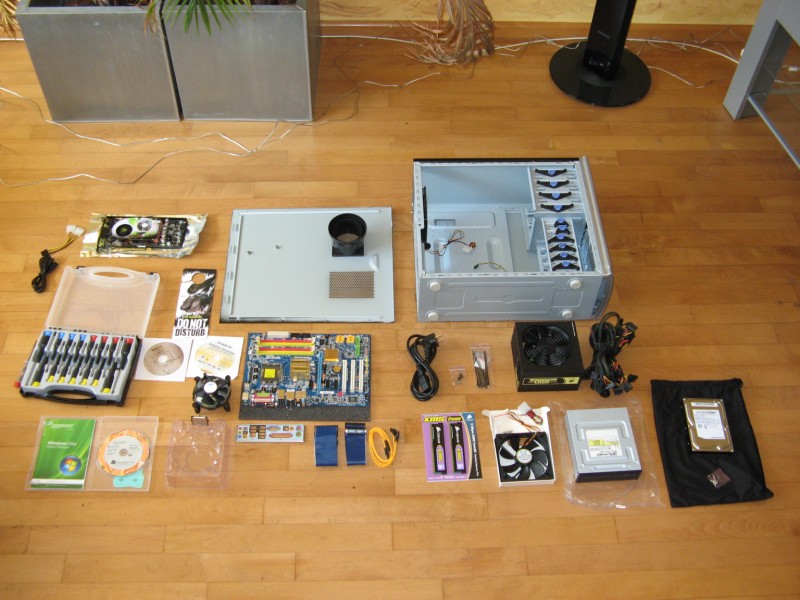
If you don't know what parts are all compatible, or if you're wanting the best “bang for your buck” in the component choices, or even if you're stuck half-way through the build and need a guided response - feel free to post a thread right here in our Help Desk and we'll help you! There are many different uses for a computer system, so make sure you let us know why you want to use it, and a budget, and you'll be bragging to your mates in no time about your self-built system. Click the image to open in full size.

A quick note – like there are many different uses for a computer system, there are also many different ways to build a computer system. Die-hard Geeks may wish to debate the order here, but the reality is that this way works. Other ways work also. And, of course, this tutorial was written up to go with some photos that one of our very own Tech Apprentices took when he built his own computer. So you may find that your system looks different from the pictures – for example, you may not have a discrete video card, and you may have two hard drives, and so on. If your system is markedly different from our example here, please feel free to post a thread and we can tell you any differences you need to incorporate into the build. For example, some aftermarket CPU heatsink/fans need a bracket on the underside of the motherboard, so this would need to be installed before the motherboard is fitted in the case.


1. Gather all Components
First things first – we need to ensure we have all the pieces. Here is a list of things you'll need:

* Case (and any extra Case Fans)
* Power Supply
* Motherboard
* CPU (Processor) and Heatsink/Fan (and thermal paste, if not included)
* RAM (Memory)
* Hard Drive
* Optical Drive (e.g. DVD Burner)
* Video Card (may be integrated into Motherboard)
* Sound Card (may be integrated into Motherboard)
* Networking Card (may be integrated into Motherboard)
* Keyboard
* Mouse
* Speakers
* Monitor
* Any extra add-on cards you may have for the build (eg. TV Tuner Card)
* OS Installation Disc (eg. Windows, Linux)

The idea is to get the bunch of parts into a working computer Click the image to open in full size.

2. Gathering Your Tools
Once you have gathered your components, you need to ensure you have the right tools:

* Proper screwdrivers. (flat and philips)
* A pair of pointy-nose pliers
* Zip ties
* Scissors or snips for cutting off loose zip tie ends
* Patience and common sense Click the image to open in full size.


These tools should be all you need when building a computer. It is imporant to take anti-static precautions. Some people may wish to use an anti-static wriststrap. Once you have all the components and tools, read on and we'll explain how to build your own computer!

3. The Build
First, the case. Open both side panels, then install the standoffs that will keep the motherboard off the metal plate.

Ensure you only install to align with the holes on the motherboard

In the picture above you can see where the standoffs are installed. Use a set of pliers to make sure the standoffs are driven in firmly. Once you have installed the standoffs, next install the back panel I/O bracket that came with the motherboard. Usually, you'll find that the case's generic one is incorrect. Pop the old one out, and insert the one that came with the motherboard. Ensure that it is properly installed, as the motherboard will be hard up against it. Now it's time to install the motherboard. Simply position the motherboard in the correct position and slowly lower it down into the case. To ensure the motherboard is rotated the right way, the CPU socket should be toward the top-left of the case. Make sure you position it right on top of the standoffs so you can properly lock it in by driving screws in the holes on the motherboard where the standoffs are positioned. Put the screws in firm – not tight – so the motherboard is fastened securely.

After the motherboard, install the PSU. Slide the unit from inside the case, and sit it up flush against the back of the case. You'll see where you need to install the 4 screws that hold it in tight. Once it's in firmly, put the cables out of the way so you have as much room as possible inside the case (I.e. hang them up and outside the case).


Next, finish preparing the case for the rest of the components. If you are installing any add-on cards (such as a discrete video card), you'll need to remove the metal backing plate aligning with the corresponding installation slot.

Now move onto any case fans that need to be installed. Most cases come with at least one fan pre-installed on the back, such as our example did. We've also added one in front of where the hard drive will be located. Once the hard drive is installed, it's almost impossible to fit a fan in or out of there, so it's important to do this first. Make sure the case fan is facing so that the air is blown into the case over where the hard drive will be installed – this is an intake fan, and the fan on the back is an exhaust fan.


On the front of the case, you'll need to remove the bezel plates to make room for inserting any optical drives and floppy drives. In our example computer, you can see we have one DVD burner, but no floppy drives – so only one plate was removed.


Now there is room for the optical drive to fit, go ahead and install it. The unit should slide in from the front until it is sitting flush with the case. Some cases may have a “screw-less” or “tool-less” design, whereby a bracket needs to be removed to slide the unit in, and then returned into place and clipped into the lock position. This is how the Cooler Master case works in our example. Other cases will simply have holes ready, and you need to align them up and screw in firm.


After the optical drive, install the hard drive in the same manner. The only difference is that the hard drive should slide in to the lower cage from inside the case. Make sure the you insert it the correct way, so that the power and data connectors are facing the back of the case, ready to connect up at a later point. If you are installing a large graphics card (I.e. for a gaming computer), you may want to ensure you put the hard drive in the lower space to make as much room as possible for the graphics card and PSU cables. And – of course – if this build is using multiple graphics cards (SLI or Crossfire), then careful planning is needed prior to fitting the parts.


By now, the inside of the case should be starting to take shape. The motherboard, power supply, optical drive, and hard drive are all installed. Next we'll move on to the components that connect to the motherboard directly.

CPU – in our example, we have used a Socket 775 (Intel E8400) processor and motherboard combination. Other combinations may look different, such as having pins on the processor itself and not on the motherboard. Either way, take extreme caution, as even a slight bend to one of these pins can render the component useless.

Using the lever next to the CPU socket, unhinge it and then open the metal gate surrounding the socket. Most will have a protective cover that needs removing.

Handling the CPU gently by the edges, place the CPU into the socket, ensuring it is aligned the correct way.

This is the CPU sitting in place with the gate open

Gently close the metal gate surround.


Finally, use the lever to lock the metal gate surround into place – you may need to use firm pressure.

After the CPU is installed, fit the CPU heatsink/fan. If you have purchased a retail CPU, most come with thermal paste pre-applied to the heatsink. If this is the case, then you do not need to worry about putting your own paste on. If this is not the case, then you'll need to squeeze a small amount (about the size of a grain of rice) onto the CPU before mounting the heatsink on top.

Once the thermal paste is organised, and the CPU is ready to go, line up the heatsink and sit it in place. (If you are using a 3rd-party heatsink, you will need to follow the instructions provided with it). Press down firmly on the 4 corner clips to properly attach the heatsink to the motherboard, which puts the proper amount of pressure onto the CPU for maximum heat dissipation.


While we're on the CPU, we'll finish off the job by attaching the heatsink/fan power and sensor connector to the motherboard, and the 4-pin CPU power connector from the PSU to the motherboard close to the CPU. (Some newer variants may have an 8-pin power connector - this is for new high-powered CPU and motherboard combinations - consult your motherboard manual for which one you should use).


The RAM sticks are relatively easy to install. If your motherboard supports a dual-channel configuration, then it will most likely have the dual-channel slots already marked as such. In our example, we can see the slots are colour-coded - so install matching pairs of RAM sticks into matching slots. For our example, this means slots 1 and 3 will then be populated.

Once you've sorted out where the sticks are being installed, unlock the slots by moving the end levers outward.

Open the side locks, ready to install the RAM

Line the module up (the off-centre notch will ensure it only fits one way) and use steady, firm pressure to push it in. When it is in place, the slots at the end will have "snapped" into each side of the stick, securing it.


Now add any discrete cards for the build – in our example photo, we have one video card to be installed. Be sure to line up each card properly into the installation slot on the motherboard. Push cards in firm to ensure a proper fit.


Now all the physical components should be installed for your system. All that's left to do is connect everything up. SATA data cables (or IDE ribbon cables for components that connect in that way) need to run from the device to the motherboard. Power cables from the PSU need to connect up to each component as necessary.


It is especially important to take care when running the cables from the PSU to each component – always try and get the “mess” minimised as much as possible, for a nicer look and better in-case airflow. Use zip ties to clean up loose ends, especially where the fans are located. It is in this regard that a modular PSU makes all the difference – only connect what is needed and the rest can be left in the box, instead of having to zip tie it all together and tuck the bundle out of the way as much as possible... Even so – with careful planning, a non-modular PSU can still be routed efficiently for good air-flow.

You should have already connected the CPU 4-pin (or 8-pin) connector, so next install the 24-pin ATX motherboard power connector, the DVD drive, the hard drive, the graphics card, and anything else in your specific system that needs a power cable.


Note from Artellos (Olrik): As you might see, I made a little mistake here. I didn't install the second RAM module in the other Yellow slot. This way the RAM doesn't run in Dual-Channel configuration. I should have placed the second one in the other yellow slot.

The final connections to be made are the case connectors to the motherboard. These are for the power and reset button, power and HDD light, and USB and other data connectors for the ports on the front of the case. As every case and motherboard is different, you'll need to carefully follow the instructions in the motherboard manual. Every manual should have wiring diagrams in detail. You may find it under the heading “Front Panel Connectors” or F_PANEL.


The Photo above is showing a very clean, simple look with the cables tied up nicely

4. The Result

And there you have it. Everything should now be complete, and ready for installation of the operating system. In the photo below, we can see the system in all its glory, although a few more zip-ties to minimise the bunch of black cables from the PSU into a smaller bundle would be nice. Nonetheless, for a first-time build, this Tech Apprentice received top marks! (Well, the system worked, so that's good!)

The job complete!

All thats left to do is close the case side panels, to protect the important components inside, and to create the proper environment for in-case airflow – to keep all the components nice and cool.
If you are installing an OEM version of Windows, you need to put the COA sticker on the case
That's all there is to it! Enjoy your new computer.

How to Remove Autorun.inf

Autorun is hidden and it can’t be remove or disinfected by Anti virus. And you try finding the autorun.inf file but failed even if you select to show all files from folder option?

Here’s what you need to do…
Boot your system in Safemode
Open your flash drive via Command Prompt (do this via Start->Run->cmd.exe).
Change your logged drive to your USB flash drive (e.g. if your flash drive is at drive E: then type E: on the command prompt then press enter)
Type ATTRIB -H -R -S AUTORUN.INF then press enter
type in “del autorun.inf” then press [Enter]
After reboot, you can now access your drive

Sunday, March 7, 2010

Disable CD Autorun

Disable CD Autorun:
1) Click Start, Run and enter GPEDIT.MSC
2) Go to Computer Configuration, Administrative Templates, System.
3) Locate the entry for Turn autoplay off and modify it as you desire

How to Convert a FAT Partition to NTFS

How to Convert a FAT Partition to NTFS:
To convert a FAT partition to NTFS, perform the following steps.
Click Start, click Programs, and then click Command Prompt.
In Windows XP, click Start, and then click Run.
At the command prompt, type CONVERT [driveletter]: /FS:NTFS.
Convert.exe will attempt to convert the partition to NTFS.
NOTE: Although the chance of corruption or data loss during the conversion from FAT to NTFS is minimal, it is best to perform a full backup of the data on the drive that it is to be converted prior to executing the convert command. It is also recommended to verify the integrity of the backup before proceeding, as well as to run RDISK and update the emergency repair disk (ERD).
Convert.exe will attempt to convert the partition to NTFS

Friday, February 26, 2010

Folder Lock With Password Without Any Software

Folder Lock With Password Without Any Software-
Paste the code given below in notepad and 'Save' it as batch file (with extension '.bat').
Any name will do.
Then you see a batch file. Double click on this batch file to create a folder locker.
New folder named 'Locker' would be formed at the same location.
Now bring all the files you want to hide in the 'Locker' folder. Double click on the batch file to lock the folder namely 'Locker'.
If you want to unlock your files,double click the batch file again and you would be prompted for password.
Enter the password and enjoy access to the folder.


if EXIST "Control Panel.{21EC2020-3AEA-1069-A2DD-08002B30309D}" goto UNLOCK
if NOT EXIST Locker goto MDLOCKER
:CONFIRM
echo Are you sure u want to Lock the folder(Y/N)
set/p "cho=>"
if %cho%==Y goto LOCK
if %cho%==y goto LOCK
if %cho%==n goto END
if %cho%==N goto END
echo Invalid choice.
goto CONFIRM
:LOCK
ren Locker "Control Panel.{21EC2020-3AEA-1069-A2DD-08002B30309D}"
attrib +h +s "Control Panel.{21EC2020-3AEA-1069-A2DD-08002B30309D}"
echo Folder locked
goto End
:UNLOCK
echo Enter password to Unlock folder
set/p "pass=>"
if NOT %pass%==type your password here goto FAIL
attrib -h -s "Control Panel.{21EC2020-3AEA-1069-A2DD-08002B30309D}"
ren "Control Panel.{21EC2020-3AEA-1069-A2DD-08002B30309D}" Locker
echo Folder Unlocked successfully
goto End
:FAIL
echo Invalid password
goto end
:MDLOCKER
md Locker
echo Locker created successfully
goto End
:End

Show Your name after time in taskbar...

Trick to Show Your name after time in taskbar...

Try this trick to add up ur name in place of AM and PM beside time
Its simple
Step-1:- Navigate to -> Start -> Control Pannel -> Regional and Language Option -> Click on Customize -> Go to TIME Tab -> Change AM symbol and PM symbol from AM and PM to ur name -> Apply -> Ok ...
Did It change? If not, follow step-2 below.

Step2:- Now go to time in taskbar and Double Click it to open "Date and time property" ...Look place where time changes in digital form i.e. 02:47:52 AM , click to arrow to cnage the AM or PM by selecting and press arrow. It will Show ur name or name that was entered by u, Apply -> OK and be HAPPY.

MULTIPLE LOGIN IN YAHOO WITHOT ANY SOFWARE

MULTIPLE LOGIN IN YAHOO WITHOT ANY SOFWARE

You can login with multiple id's on the same yahoo messenger without any download or patch .
Follow these steps :

1. Go to Start ----> Run . Type regedit, then enter .

2. Navigate to HKEY_CURRENT_USER --------> Software ---> yahoo --->pager---->Test

3. On the right page , right-click and choose new Dword value .

4. Rename it as Plural.

5. Double click and assign a decimal value of 1.

Its done!!
Now close registry and restart yahoo messenger and try Multiple Login

Tuesday, February 9, 2010

Backup Your registration, config files before formating

Backup Your registration, config files before formating.
sometimes there are such moments, when it is necessary to do hard reset. But to restore all of again occupies a lot of time.
Here is A list of configurations, registrations and other.
----------
Default apps:
Adobe Reader:
c:/Private/20001bb9/20001bb9.ini (configuration file);
Quicksheet:
c:/Private/200002c2/quicksheet.ini (configuration file);
Quickword:
c:/Private/200002c1/quickword.ini (configuration file);
Zip manager:
c:/Private/2000023d/zipmanager.ini (configuration file);
VideoEditor:
c:/Private/10208a29/ManualVideoEditor.ini (configuration file);
ImageEditor:
c:/Private/101ffa91/ImageEditor.ini (set. file);
c:/Private/101ffa91/PluginStorage.ini (configuration of plugins);
Radio:
c:/Data/radiostations.db (set. file of the stations);
c:/private/101ff976/visualradio.ini (configuration file);
Browser:
c:/Private/101F8530/Cookies.dat (cookies);
c:/Private/100012a5/DBS_101FD685_BrowserSavges.db (File of the saving pages);
c:/Private/100012a5/DBS_101FD685_BrowserBookmarks.db (book-marks, before copying kill a process *FavouritesSrv.exe*, maybe the phone will hang up);
Calendar:
c:/Private/10003a5b/Calendar (set. file );
Notes:
c:/Private/100012a5/DBS_101F8878_Notepad.dat (file of the notes);
----------
Apps from Lonely Cat Games:
For registration in all of applications answers:
?:/Private/100012a5/DBS_100065ff_Contacts.cdb ( before copying kill a process *CNTSrv.exe*)
LCG Jukebox:
!:/private/a0000bcc/MusicPlayer/config.txt (configuration file);
ProfiMail:
!:/System/Data/ProfiMail/config.txt (configuration file);
!:/System/Data/ProfiMail/accounts.bin (This file is responsible for the setup of your account - your mail servers);
!:/System/Data/ProfiMail/mail/ (folder with the messages and headers of messages from the accounts)
!:/system/data/profimail/messages.bin (responsible for incoming and outgoing messages);
X-plore:
!:/private/a0000bcd/Explorer/config.txt (configuration file);
!:/private/a0000bcd/Explorer/QuickDirs.bin (file is responsible for the labels);
!:/private/a0000bcd/Explorer/Assoc.bin (file is responsible for the association);
Slick:
!:/System/data/Slick/accounts.bin (account`s configuration);
SmartMovie v4.x
!:/private/a000b868/SmartMovie/config.txt
!:/Private/a000b868/xl_config.kls (configuration file);
----------
Apps from Epocware:
It is intended for the licensed possessors of these applications
Handy Calculator:
c:/private/2000cec6/HandyCalculator.ini (file of registration);
Handy Calendar:
c:/private/20004ec1/HandyCalendar.ini (file of registration and of configuration);
Handy Clock:
c:/private/200013A4/HandyClock.ini (file of registration);
c:/Epocware/HandyClock/Settings.ini (configuration file);
HandyConverter:
c:/private/20007fab/HandyConverter.ini (file of registration);
HandyProfiles:
c:/private/2000A4B2/HandyProfilesServer.ini (configuration file and file switching profile);
c:/private/2000A4B1/HandyProfiles.ini (file of registration);
HandyShell:
c:/private/20013B7B/HandyShell.ini (file of registration and configuration *apps and contacts*);
c:/private/20013B78/HandyShellServer.ini (configuration file);
HandyTaskman:
c:/private/20004EBB/HandyTaskman.ini (file of registration and configuration);
Handy Weather:
c:/private/2000139F/HandyWeather.ini (file of registration);
c:/private/2000139D/DownloadServer.ini (file of registration IMEI on a server);
c:/Epocware/HandyWeather/Settings.ini (configuration file of cities);
SlovoEd:
c:/private/20001a58/SlovoEd.ini (configuration file);
c:/private/20001A58/DictId3.ini (file of dictionaries registration );
----------
Apps from SmartphoneWare:
BestBlacklist:
!:/data/BBlacklist/BestBlacklist.db (file of registration);
!:/data/BBlacklist/BestBlackList.ini (configuration file);
BestTimer:
!:/private/20012550/Timer_reg.reg (file of registration);
!:/private/20012550/Timers (file of timers);
BestProfiles:
!:/Private/200095E7/BestProfiles.reg (file of registration);
!:/Data/SmartphoneWare/BestProfiles/settings.dat (Schedule profile switching);
FSCaller:
!:/private/2000FE63/FSCaller.reg (file of registration);
!:/private/2000FE63/FSCaller.dat (configuration file);
Best private conversation:
!:/Smartphoneware/BPC/Rules.dat (configuration file);
----------
System :
ActiveFile:
!/:system/data/ActiveFile/Settings/general.ini (configuration file);
N82smart:
c:/Data/N82smart/n82smart.ini (configuration file);
Smart Settings:
c:/private/2000e18c/SmartSettingsSettings.ini (file of registration and configuration);
SlideHelper:
c:/private/ebe74ca5/SlideHelper.ini (configuration file);
FreeCallSprite
c:/private/e3527aab/FreeCallSprite.ini
c:/Data/FreeCallSprite/FreeCallSprite.dic
c:/Data/FreeCallSprite/FreeCallSprite.cfg (configuration file );
Vibrate call:
!:/private/200143DA/regfile.txt (file of registration);
!:/private/200143DA/VibrateCall.ini (configuration file);
Killme:
!:/ private/EAFE014C/ (folder with a list of programs: protected , removable, unusual, reserved );
JbakTaskMan:
!:/System/data/JbakTaskMan.ini (all config. of app);
TaskSpy:
c:/private/2000713a/taskspy.ini (configuration file);
[s2]

100 shortcuts in windows XP

CTRL+C (Copy)
CTRL+X (Cut)
CTRL+V (Paste)
CTRL+Z (Undo)
DELETE (Delete)
SHIFT+DELETE (Delete the selected item permanently without placing the item in the Recycle Bin)
CTRL while dragging an item (Copy the selected item)
CTRL+SHIFT while dragging an item (Create a shortcut to the selected item)
F2 key (Rename the selected item)
CTRL+RIGHT ARROW (Move the insertion point to the beginning of the next word)
CTRL+LEFT ARROW (Move the insertion point to the beginning of the previous word)
CTRL+DOWN ARROW (Move the insertion point to the beginning of the next paragraph)
CTRL+UP ARROW (Move the insertion point to the beginning of the previous paragraph)
CTRL+SHIFT with any of the arrow keys (Highlight a block of text)
SHIFT with any of the arrow keys (Select more than one item in a window or on the desktop, or select text in a document)
CTRL+A (Select all)
F3 key (Search for a file or a folder)
ALT+ENTER (View the properties for the selected item)
ALT+F4 (Close the active item, or quit the active program)
ALT+ENTER (Display the properties of the selected object)
ALT+SPACEBAR (Open the shortcut menu for the active window)
CTRL+F4 (Close the active document in programs that enable you to have multiple documents open simultaneously)
ALT+TAB (Switch between the open items)
ALT+ESC (Cycle through items in the order that they had been opened)
F6 key (Cycle through the screen elements in a window or on the desktop)
F4 key (Display the Address bar list in My Computer or Windows Explorer)
SHIFT+F10 (Display the shortcut menu for the selected item)
ALT+SPACEBAR (Display the System menu for the active window)
CTRL+ESC (Display the Start menu)
ALT+Underlined letter in a menu name (Display the corresponding menu)
Underlined letter in a command name on an open menu (Perform the corresponding command)
F10 key (Activate the menu bar in the active program)
RIGHT ARROW (Open the next menu to the right, or open a submenu)

LEFT ARROW (Open the next menu to the left, or close a submenu)
F5 key (Update the active window)
BACKSPACE (View the folder one level up in My Computer or Windows Explorer)
ESC (Cancel the current task)
SHIFT when you insert a CD-ROM into the CD-ROM drive (Prevent the CD-ROM from automatically playing)
Dialog Box Keyboard Shortcuts
CTRL+TAB (Move forward through the tabs)
CTRL+SHIFT+TAB (Move backward through the tabs)
TAB (Move forward through the options)
SHIFT+TAB (Move backward through the options)
ALT+Underlined letter (Perform the corresponding command or select the corresponding option)
ENTER (Perform the command for the active option or button)
SPACEBAR (Select or clear the check box if the active option is a check box)
Arrow keys (Select a button if the active option is a group of option buttons)
F1 key (Display Help)
F4 key (Display the items in the active list)
BACKSPACE (Open a folder one level up if a folder is selected in the Save As or Open dialog box)
m*cro$oft Natural Keyboard Shortcuts
Windows Logo (Display or hide the Start menu)
Windows Logo+BREAK (Display the System Properties dialog box)
Windows Logo+D (Display the desktop)
Windows Logo+M (Minimize all of the windows)
Windows Logo+SHIFT+M (Restore the minimized windows)
Windows Logo+E (Open My Computer)
Windows Logo+F (Search for a file or a folder)
CTRL+Windows Logo+F (Search for computers)
Windows Logo+F1 (Display Windows Help)
Windows Logo+ L (Lock the keyboard)
Windows Logo+R (Open the Run dialog box)
Windows Logo+U (Open Utility Manager)
Accessibility Keyboard Shortcuts
Right SHIFT for eight seconds (Switch FilterKeys either on or off)
Left ALT+left SHIFT+PRINT SCREEN (Switch High Contrast either on or off)
Left ALT+left SHIFT+NUM LOCK (Switch the MouseKeys either on or off)
SHIFT five times (Switch the StickyKeys either on or off)
NUM LOCK for five seconds (Switch the ToggleKeys either on or off)


Windows Logo +U (Open Utility Manager)
Windows Explorer Keyboard Shortcuts
END (Display the bottom of the active window)
HOME (Display the top of the active window)
NUM LOCK+Asterisk sign (*) (Display all of the subfolders that are under the selected folder)
NUM LOCK+Plus sign (+) (Display the contents of the selected folder)
NUM LOCK+Minus sign (-) (Collapse the selected folder)
LEFT ARROW (Collapse the current selection if it is expanded, or select the parent folder)
RIGHT ARROW (Display the current selection if it is collapsed, or select the first subfolder)
Shortcut Keys for Character Map
After you double-click a character on the grid of characters, you can move through the grid by using the keyboard shortcuts:
RIGHT ARROW (Move to the right or to the beginning of the next line)
LEFT ARROW (Move to the left or to the end of the previous line)
UP ARROW (Move up one row)
DOWN ARROW (Move down one row)
PAGE UP (Move up one screen at a time)
PAGE DOWN (Move down one screen at a time)
HOME (Move to the beginning of the line)
END (Move to the end of the line)
CTRL+HOME (Move to the first character)
CTRL+END (Move to the last character)
SPACEBAR (Switch between Enlarged and Normal mode when a character is selected)
m*cro$oft Management Console (MMC) Main Window Keyboard Shortcuts
CTRL+O (Open a saved console)
CTRL+N (Open a new console)
CTRL+S (Save the open console)
CTRL+M (Add or remove a console item)
CTRL+W (Open a new window)
F5 key (Update the content of all console windows)
ALT+SPACEBAR (Display the MMC window menu)
ALT+F4 (Close the console)
ALT+A (Display the Action menu)
ALT+V (Display the View menu)
ALT+F (Display the File menu)
ALT+O (Display the Favorites menu)
MMC Console Window Keyboard Shortcuts
CTRL+P (Print the current page or active pane)
ALT+Minus sign (-) (Display the window menu for the active console window)
SHIFT+F10 (Display the Action shortcut menu for the selected item)


F1 key (Open the Help topic, if any, for the selected item)
F5 key (Update the content of all console windows)
CTRL+F10 (Maximize the active console window)
CTRL+F5 (Restore the active console window)
ALT+ENTER (Display the Properties dialog box, if any, for the selected item)
F2 key (Rename the selected item)
CTRL+F4 (Close the active console window. When a console has only one console window, this shortcut closes the console)
Remote Desktop Connection Navigation
CTRL+ALT+END (Open the m*cro$oft Windows NT Security dialog box)
ALT+PAGE UP (Switch between programs from left to right)
ALT+PAGE DOWN (Switch between programs from right to left)
ALT+INSERT (Cycle through the programs in most recently used order)
ALT+HOME (Display the Start menu)
CTRL+ALT+BREAK (Switch the client computer between a window and a full screen)
ALT+DELETE (Display the Windows menu)
CTRL+ALT+Minus sign (-) (Place a snapshot of the active window in the client on the Terminal server clipboard and provide the same functionality as pressing PRINT SCREEN on a local computer.)
CTRL+ALT+Plus sign (+) (Place a snapshot of the entire client window area on the Terminal server clipboard and provide the same functionality as pressing ALT+PRINT SCREEN on a local computer.)
m*cro$oft Internet Explorer Navigation
CTRL+B (Open the Organize Favorites dialog box)
CTRL+E (Open the Search bar)
CTRL+F (Start the Find utility)
CTRL+H (Open the History bar)
CTRL+I (Open the Favorites bar)
CTRL+L (Open the Open dialog box)
CTRL+N (Start another instance of the browser with the same Web address)
CTRL+O (Open the Open dialog box, the same as CTRL+L)
CTRL+P (Open the Print dialog box)
CTRL+R (Update the current Web page)
CTRL+W (Close the current window)


few more...
Ease of Access keyboard shortcuts~~~~~~~

Right SHIFT for eight second~~
Turn Filter Keys on and off


Left ALT+left SHIFT+PRINT SCREEN (or PRTSCRN)~~
Turn High Contrast on or off


Left ALT+left SHIFT+NUM LOCK~~~
Turn Mouse Keys on or off

SHIFT five times~~
Turn Sticky Keys on or off

NUM LOCK for five seconds~~
Turn Toggle Keys on or off

Windows logo key Picture of Windows logo key +U~~
Open the Ease of Access Center

CHANGE YouR PROCESSOR NAME

GO TO

START>

RUN>

TYPE REGEDIT>

HKEY_LOCAL_MACHINE>

HARDWARE>

DISCRIPTION>

SYSTEM>

CENTRAL PROCESSOR>

ON RIGHT HAND SIDE RIGHT CLICK ON PROCESSORNAMESTRING AND THEN WRITE ANYTHING U WANT IN THAT TEXTBOX